For anyone sitting at a Mac who needs a still image of part of the screen without opening another app.
Mark the area with a three-key shortcut so the Mac saves exactly what you outline and nothing else.
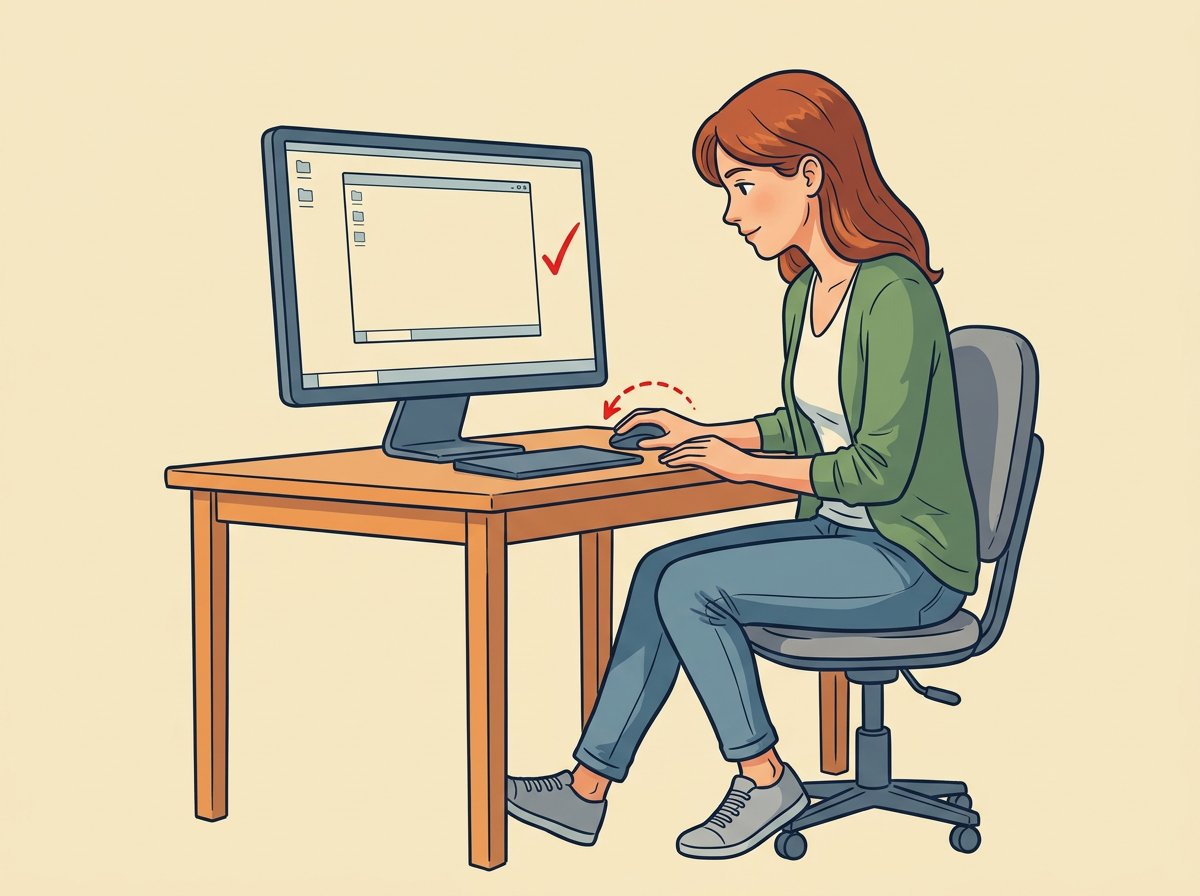
Wake the Mac, put the target window or page on screen, and leave one hand free for the keys.
Step 01
FRAME the window or page so every detail you want is visible and nothing important sits on top of it.
Scroll or resize until the content fills the area you plan to capture. Close banners or side panels that cover the part you need. You are set when the layout matches what you want in the final image.
Step 02
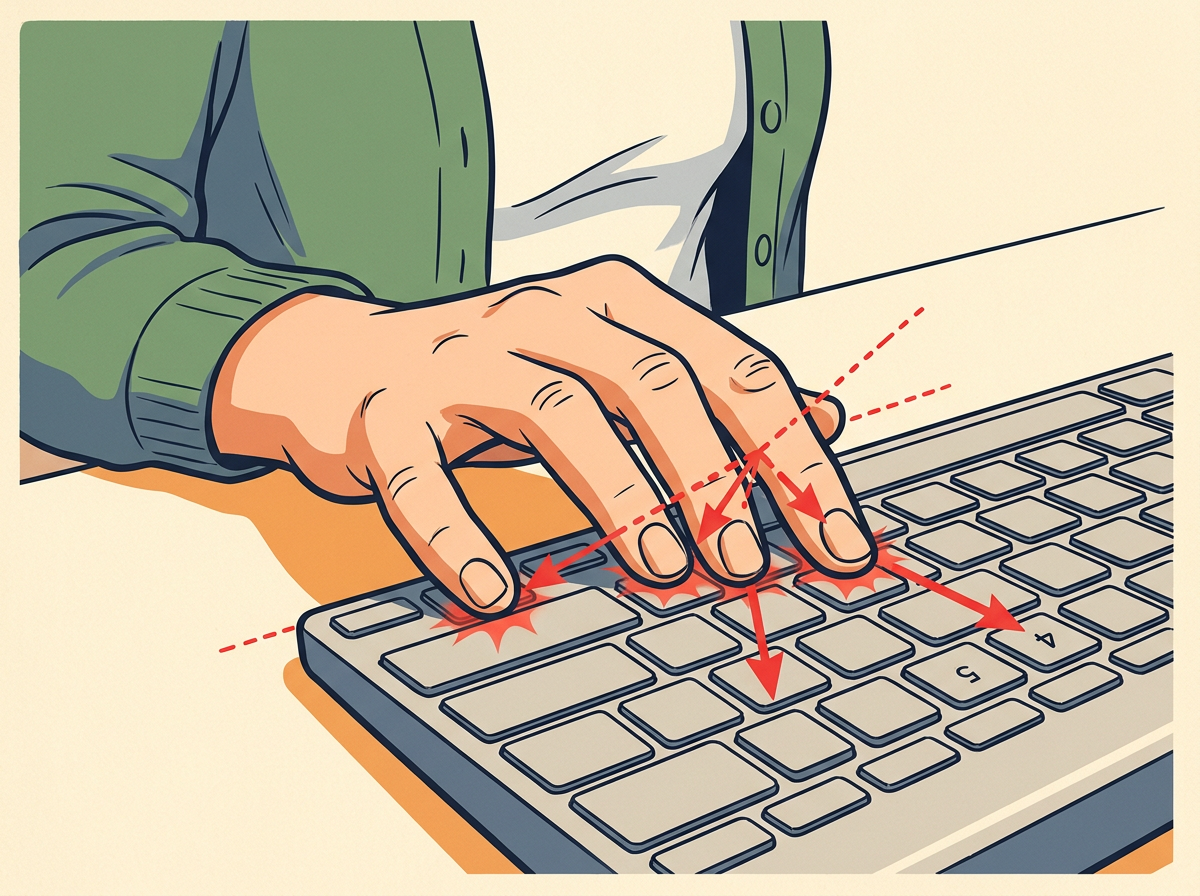
PRESS the Command key, the Shift key, and the 4 key all at once as one chord.
Command sits left of the space bar and shows a looped-square symbol. The pointer changes into a crosshair with small numbers beside it. If the arrow remains, lift your fingers and press the three keys together again.
Step 03
DRAG from the top-left corner of the area you want to the bottom-right corner without lifting your finger.
A greyed rectangle expands over the selection as you move. Keep the edges tight to the content. The box is right when it covers the target and leaves out the menu bar and other windows.
The most common mistake
Pressing the three keys one after another leaves the pointer unchanged and saves nothing. Push all three down in the same instant, then start the drag only after the pointer changes shape.
Pro tip
Add Control to the chord—Command, Control, Shift, and 4—then drag; the image goes to the clipboard so you can paste it with Command-V.
Say it every time
Frame, press Command-Shift-4, drag corner to corner, release, open the file
RELEASE the trackpad or mouse button so the Mac finishes the capture.
You may hear a short shutter click if the speaker is on. A new image file appears on the Desktop whose name begins with Screenshot. If no file arrives, repeat the three-key press and the drag.
Step 05
OPEN the new file and read the image from edge to edge.
Double-click the file that just appeared. Confirm the crop, text, and colours look sharp. If something is missing or cut off, move that file to the Trash and run the shortcut again.




 How To5 steps