




How to open the Mail panel
For anyone already working in the support console who needs the inbox docked beside the ticket without leaving the window.
IJR · Nov 5, 2026 · 1 min read
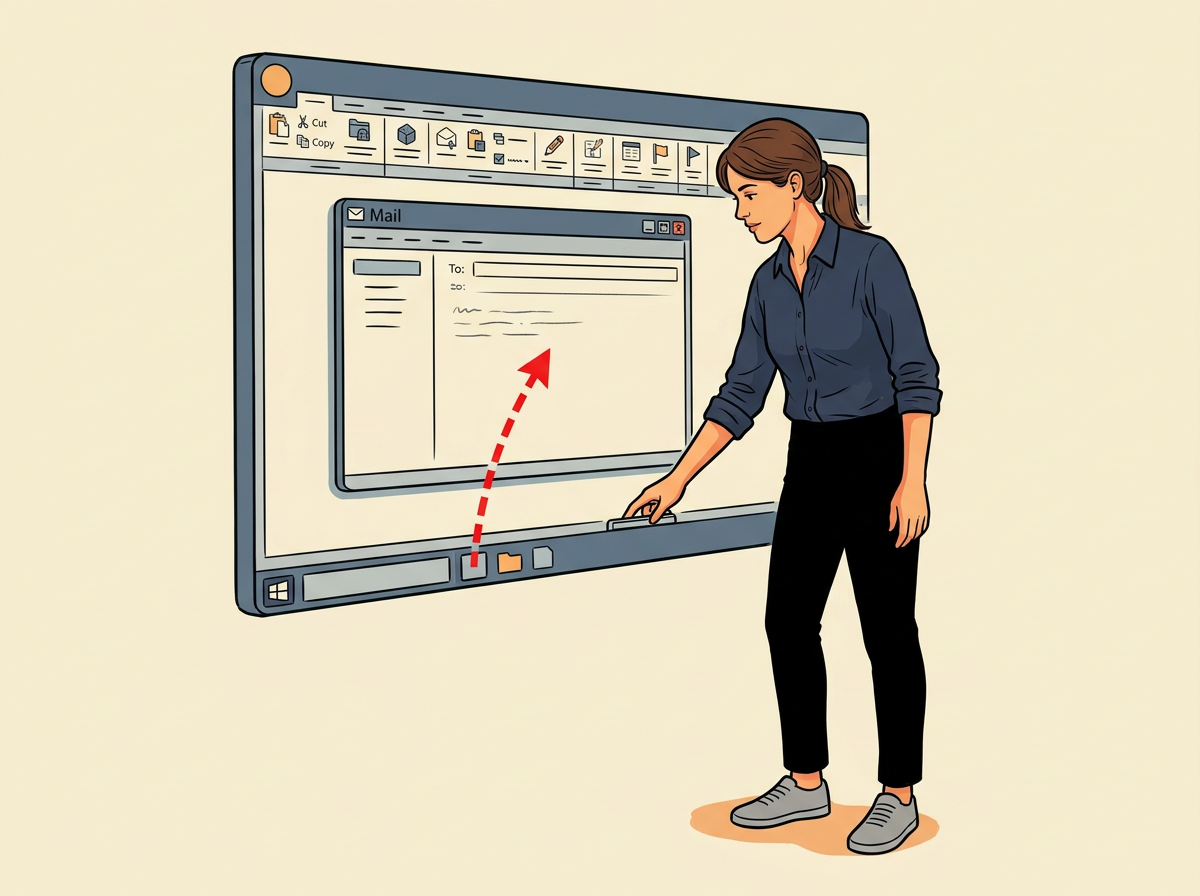
The envelope is the third icon on the top toolbar, right after Search. One click docks Mail in the same window instead of jumping you to a separate inbox. Have the support console open and signed in so the full top toolbar row is visible.
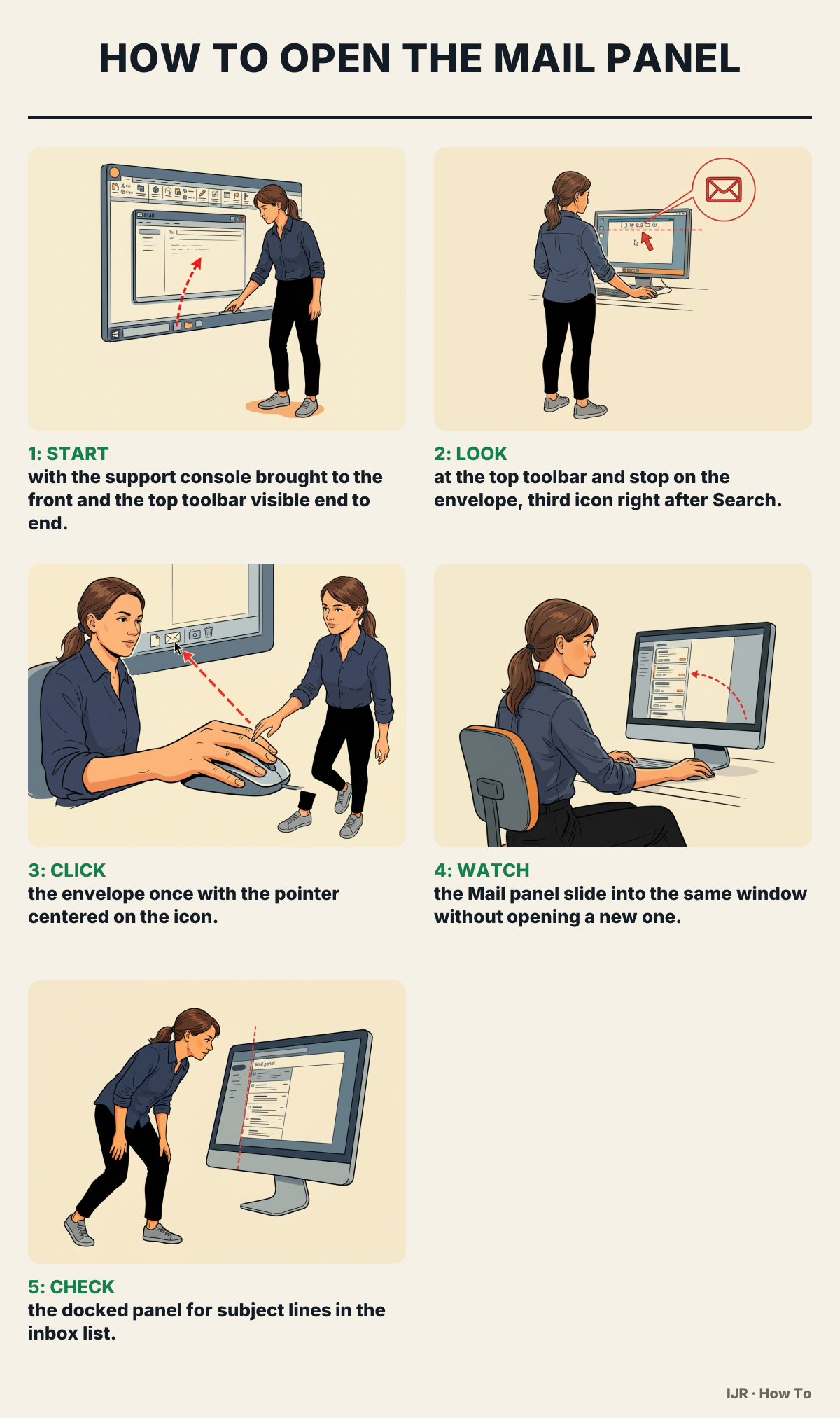
Click its taskbar button if another window covers it. You know it is ready when every toolbar icon shows without scrolling the window.
Count past the first icon and Search; the envelope sits in the third slot. It is a closed envelope outline, not the speech-bubble icon beside it.
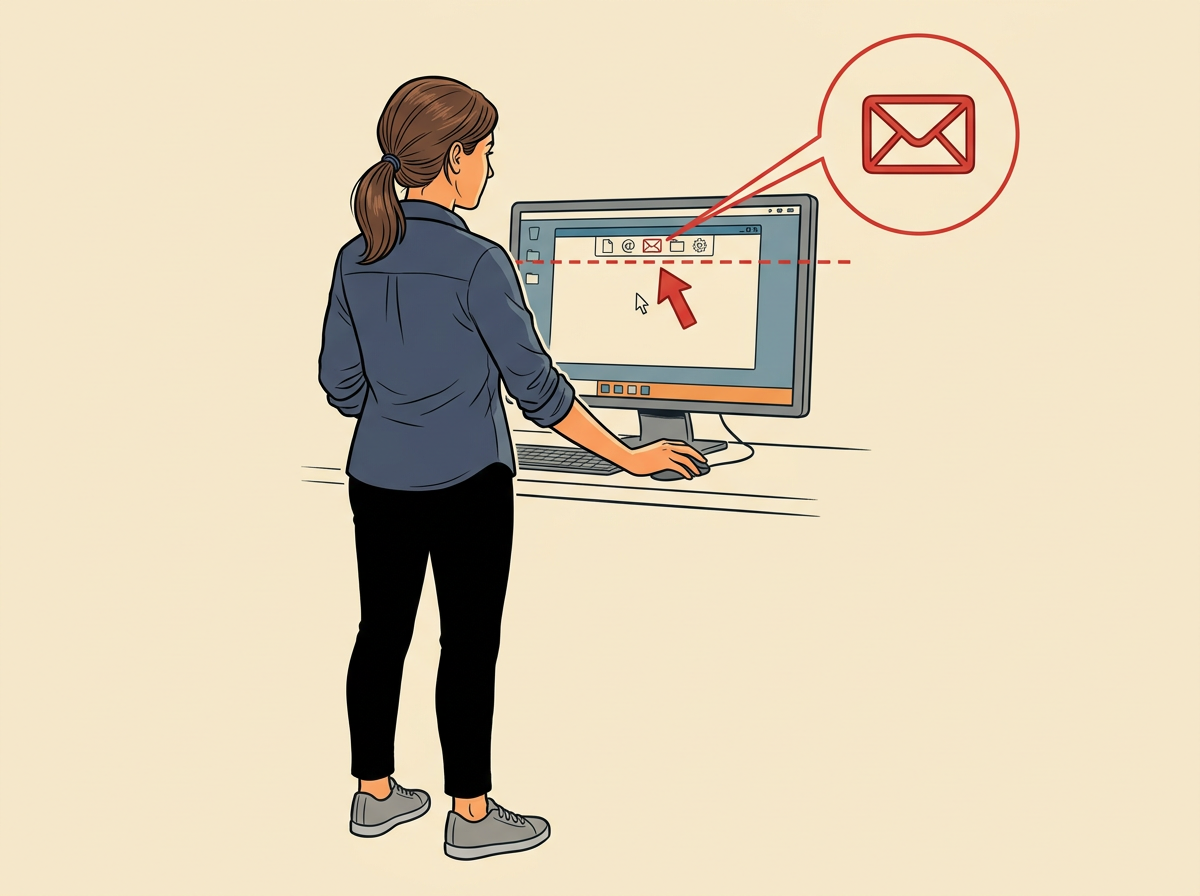
Press and release the left mouse button. A brief highlight on the icon confirms the click before any panel motion.
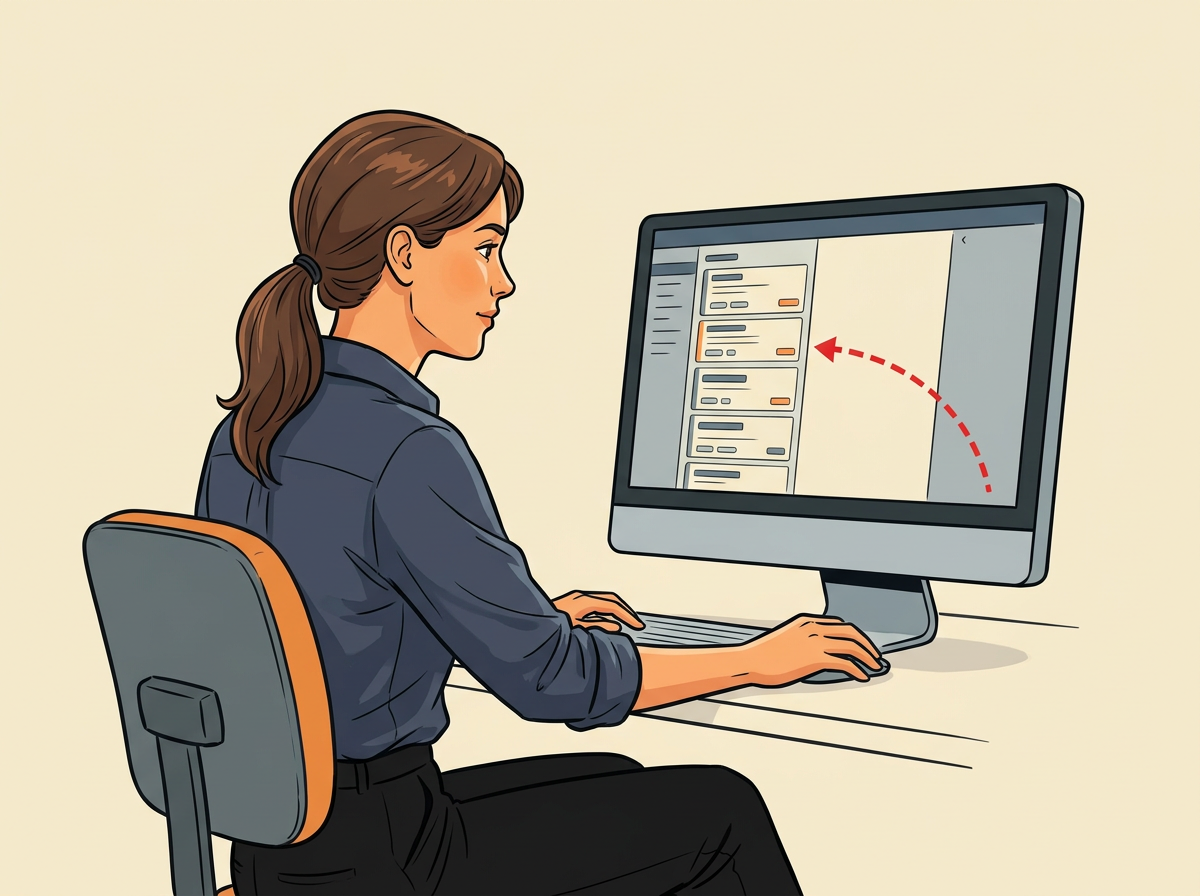
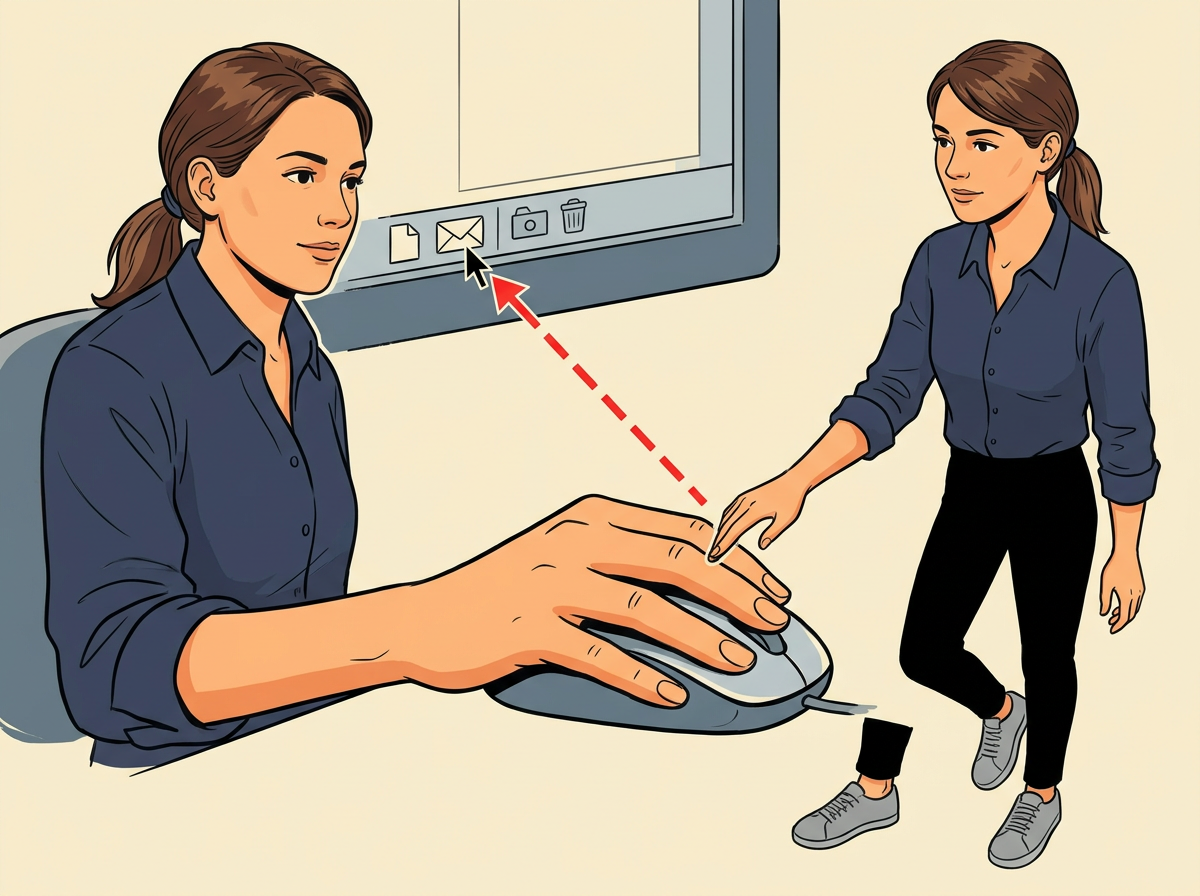
On a wide window the panel docks along the right side. On a shorter window it docks in the lower half. The ticket view stays open beside or above it.
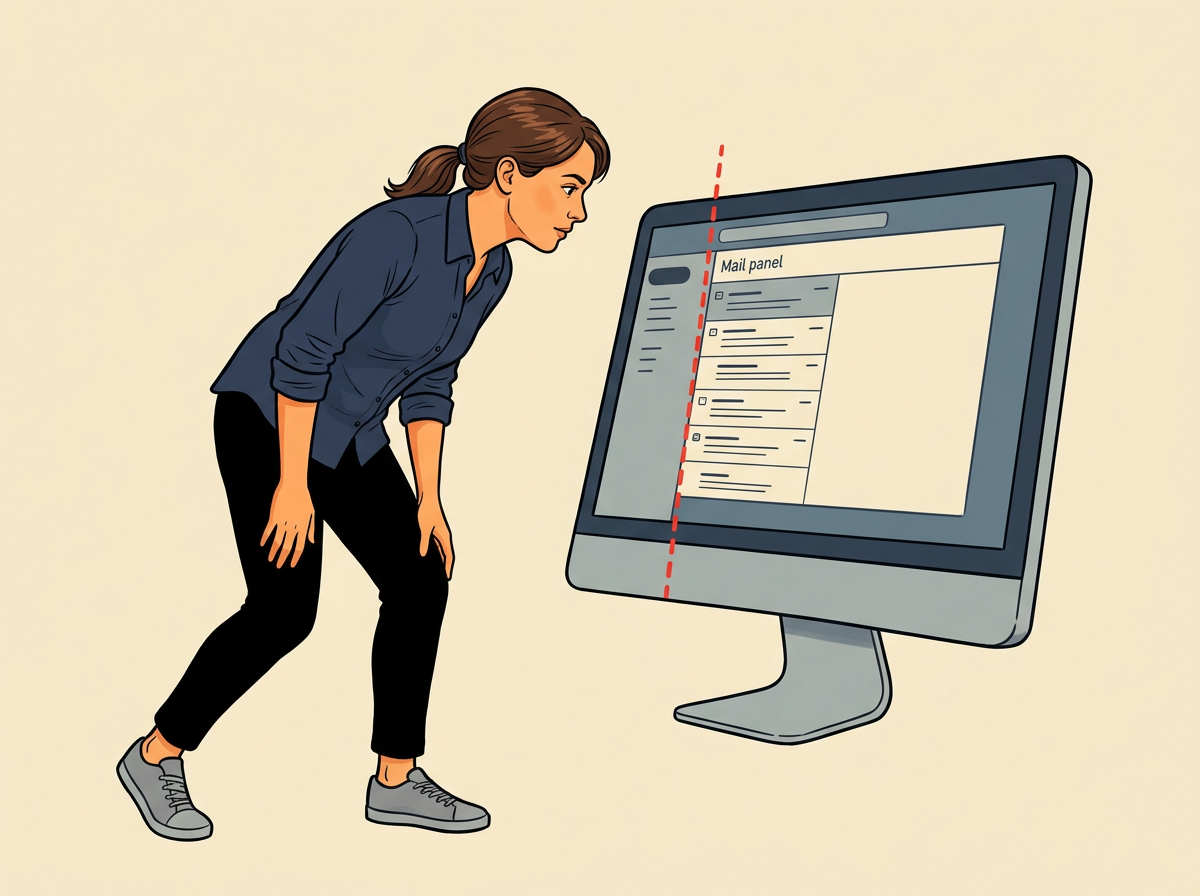
You are done when message rows appear inside the panel. If it looks empty, select the Inbox tab at the top of that panel.
The most common mistake
Clicking the speech-bubble icon beside the envelope opens Chat instead. Hover until the tooltip reads Mail and confirm the closed envelope shape before you click.
Pro tip
Open the Window menu on the top menu bar and choose Mail; the panel lands in the same docked position as the toolbar icon.